
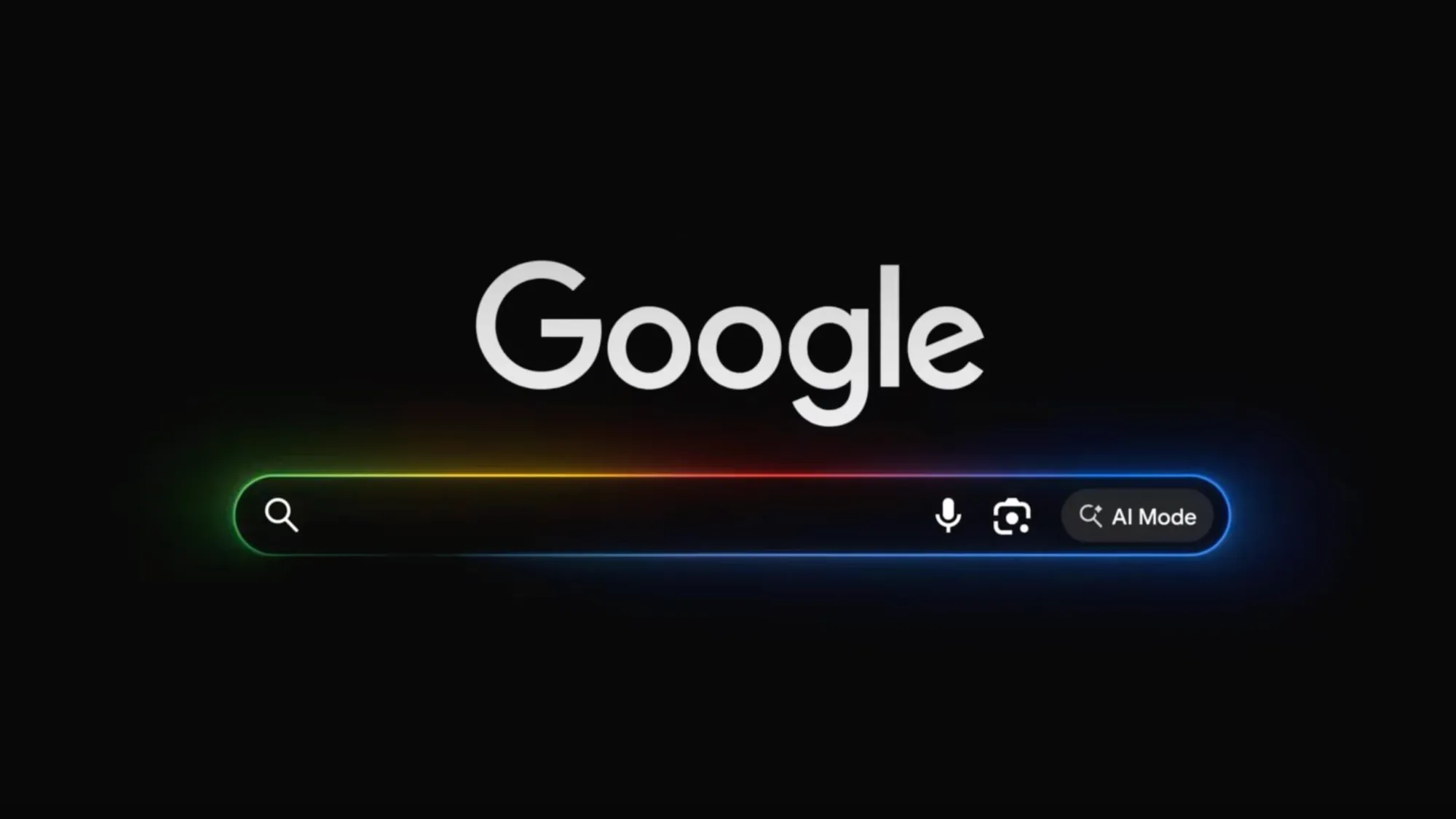
ℹ️ Quick Answer: To turn off Google AI Mode and get blue links back, click the “Web” tab under the search bar after any search. For a permanent fix, add &udm=14 to your Google search URL, or set https://www.google.com/search?q=%s&udm=14 as your default search engine in Chrome. The blue links still exist. Google just stopped showing them first.
📋 WHAT’S INSIDE
- What Actually Changed With Google Search
- Why This Is Quietly Gutting the Websites You Read
- How to Turn Off Google AI Mode: Four Methods
- Which Method Should You Use?
- When the AI Answer Is Actually Better
- Common Questions About Turning Off Google AI Mode
Last updated July 12, 2026
I have been using Google since it was a white page with a text box and nothing else. So it took me a minute to admit what I was feeling when I searched for something last week and got a wall of AI-written prose with a few citations tucked inside it. I didn’t want an essay. I wanted the links. I wanted to decide for myself which site to trust.
Turns out I’m not stuck with it, and neither are you. The ten blue links are still there. Google just moved them behind a tab most people never click, and it quietly took away the setting that used to turn this stuff off.
So here’s what changed, why it matters more than it sounds, and the four ways to get your old Google back. One of them takes about fifteen seconds and sticks forever.
What Actually Changed With Google Search
Google made AI Mode the default search experience worldwide, powered by its Gemini 3.5 Flash model. Your results page now opens with an AI-written answer instead of a list of websites, and the links get pushed down or folded into the text as citations.
Google announced the switch at its I/O conference, calling Gemini 3.5 Flash the new default model in AI Mode for everyone globally. Same announcement brought what Google calls the biggest upgrade to its search box in 25 years, a box that now takes text, images, files, video, and even your open Chrome tabs.
To be fair to Google, the blue links were never technically killed. Google’s own post promises “you’ll continue to get a range of results from Search, just like you do today.” That’s true in the same way a restaurant still technically serves water. You just have to ask now, and most people don’t know they can.
The part that stands out to me is the opt-out. AI Mode used to be a toggle in Search Labs you could switch off at the account level. That toggle has been removed for most users. The escape hatches that remain still work, but Google isn’t advertising them.
Why This Is Quietly Gutting the Websites You Read
When an AI answer sits at the top of the page, people stop clicking through to websites. Studies have measured outbound clicks dropping by around 40% and click-through rates falling between 34% and 46% depending on the type of search.
Bloomberg and Similarweb tracked 25 US publishers and found some had lost up to 70% of their traffic in a single year. A field experiment out of Carnegie Mellon found AI Overviews cut outbound organic clicks by 39.8% and pushed zero-click searches up by 34.5%.
I’ll be straight with you about my stake in this. I run this blog. Google sends me readers. So yes, this affects me directly, and you should weigh my opinion accordingly, but the reason I think you should care has nothing to do with my traffic.
The recipe blog, the hobbyist forum, the guy who spent nine years documenting one obscure topic better than anyone alive. They were all funded, badly but genuinely, by people clicking through from search. If an AI summarizes their work and nobody visits, that work stops getting made. Then the AI runs out of things to summarize. Regulators in the UK have already started forcing Google to give publishers more say in whether their content feeds AI answers at all.
How to Turn Off Google AI Mode: Four Methods

You can turn off Google AI Mode four ways. The Web tab works instantly with no setup, the &udm=14 URL parameter makes it permanent in your browser, adding -AI to a query is a quick one-off, and a few third-party search pages strip AI results entirely.
Method 1: The Web tab (easiest, zero setup)
Search like normal. Then look just under the search bar where it says Images, Videos, News, and so on. Click Web. That’s it. You get the plain list of links, no AI summary, exactly like 2015.
The catch is you have to click it every single search, which gets old by lunchtime. That’s what method 2 fixes.
Method 2: Make blue links your default
There’s a URL parameter, &udm=14, that tells Google to serve nothing but web results. No AI summary, no featured snippet, no AI Mode panel, and you can bake it into Chrome so every search you type in the address bar goes there automatically.
- In Chrome, open Settings, then Search engine, then Manage search engines and site search
- Next to Site search, click Add
- Name it something like “Google (no AI)”, give it any shortcut you like, and paste this as the URL:
https://www.google.com/search?q=%s&udm=14 - Save, then click the three dots next to your new entry and choose “Make default”
That’s a short fifteen seconds, and every search from your address bar comes back as plain links from then on. Firefox and Safari have their own versions of this under their search settings. Same URL, same result.
Method 3: Add -AI to your search
Type your search, then a space, then -AI. The minus sign tells Google to exclude that term, and as a side effect the AI panel usually vanishes with it. It’s a hack, not an official setting, so it’s less reliable than the other two. Handy when you’re on someone else’s computer.
Method 4: Search somewhere else
Sites like TenBlueLinks.org exist purely to hand you Google results with the AI stripped out, and you can set them as your phone’s default search engine. DuckDuckGo also lets you turn its AI features off in settings, and it doesn’t track you, which is a nice bonus.
⚠️ The Search Labs toggle is gone: Older guides tell you to switch AI Mode off at labs.google.com. That option has been removed for most accounts. If you go looking for it and can’t find it, you’re not doing it wrong. It isn’t there anymore.
Which Method Should You Use?

Use the Web tab if you only want plain links occasionally. Set the &udm=14 default in Chrome if the AI answers bug you every day. That’s the whole decision.
I went with the Chrome default and honestly forgot I’d even done it, which is the highest compliment I can pay a settings change. My address bar just works the way it used to. When I do want an AI answer, I go ask Claude or ChatGPT directly, because those tools are better at it than a search box that’s trying to be two things at once. I will be honest and say that sometimes, the AI answer did save me time through a summary but that was the minority.
Regardless of everything, I’d recommend Google for finding sources you can judge yourself, a real chatbot for actual conversation. I laid out how I divide the work between tools in my 2026 AI assistant stack, and this fits right into it.
When the AI Answer Is Actually Better
I’m not going to pretend AI Mode is useless, because it isn’t. For quick factual questions with one right answer, it genuinely saves you a click.
How many tablespoons in a third of a cup. What year did that movie come out. How long to boil an egg. Google reads five pages and tells you, and you didn’t want to visit any of those five pages anyway. That’s a fair trade and I use it that way.
Where it falls apart is anything with judgment in it. Product research where the reviews might be sponsored. Medical questions. Anything political. Anything where you’d want to see who’s talking before you decide whether to believe them. The AI summary flattens a dozen sources with different agendas into one confident voice, and that confidence is not the same thing as being right. I got into this in more detail when I wrote about why newer AI models keep getting SEO wrong, and the underlying problem is the same. Confident tone, shaky sourcing.
There’s also the honest caveat about these workarounds. They work today. Google could quietly retire &udm=14 the same way it retired the Search Labs toggle, and none of us would get a memo. If that happens, I’ll update this post.
Common Questions About Turning Off Google AI Mode
How do I turn off Google AI Mode permanently?
Set a custom search engine in your browser using the URL https://www.google.com/search?q=%s&udm=14 and make it your default. Every search from your address bar will then return plain blue links with no AI summary. In Chrome this is under Settings, Search engine, Manage search engines and site search.
Did Google remove the ten blue links?
No. Google says you’ll still get a range of results from Search, and the classic list is still available under the Web tab beneath the search bar. What changed is that AI Mode, powered by Gemini 3.5 Flash, is now the default view worldwide, so the AI answer appears first and links get pushed down.
Why can’t I find the AI Mode toggle in Search Labs anymore?
Google has removed that opt-out for most users. Older guides still reference it, but it no longer appears in most accounts. The Web tab and the &udm=14 URL parameter are the reliable methods that still work.
Is Google AI Mode hurting websites?
Yes, measurably. Research has found AI answers reduce outbound clicks to websites by roughly 40% and increase zero-click searches by around 34%. Bloomberg and Similarweb found some publishers lost up to 70% of their traffic in a year, and UK regulators have started requiring Google to give publishers more control.
Take the fifteen seconds and set the Chrome default. Worst case you hate it and switch back, and you’ll have learned something about how much of your search results you actually control.
Related reading: The 2026 AI Assistant Stack | Why Newer AI Models Are Worse at SEO | New to AI? Start here
WHO WROTE THIS
Moses Smith. I write Everyday AI for people who aren’t engineers. I go try the tools, then tell you honestly whether they were worth it. Sometimes the answer is no, and that’s kind of the point.
This blog is free and has no ads. If it saved you some time, you can buy me a coffee.








Leave a Reply