

ℹ️ Quick Answer: ChatGPT dots are AI helpers that keep working inside ChatGPT while you’re away, launched by OpenAI on September 29, 2026. Every ChatGPT Pro plan includes one, starting at $100 a month, and Free, Go, and Plus users don’t get one yet. A dot can buy things with a card you’ve saved on a store’s site, but only with your approval.
📋 WHAT’S INSIDE
- What ChatGPT dots are
- Who gets a ChatGPT dot, and does it cost extra?
- How to set up your ChatGPT dot
- The rules to set before your dot touches your card
- My take: I shouldn’t have to pay more to find out
- What to know before you connect everything
- FAQ
Last updated September 30, 2026
Dots showed up in my ChatGPT account this week, and I haven’t set mine up yet. I pay for the $100 Pro plan and dots came with it. I’m still figuring out the best job to give mine, and it runs on GPT-6 Astra, which is a heavy spend on usage.
When Meta’s Hatch agent leaked in August, I said an agent has to show me the cost and wait for a yes before any money moves. Dots can buy things, so that’s where this guide spends the most time.
What ChatGPT dots are
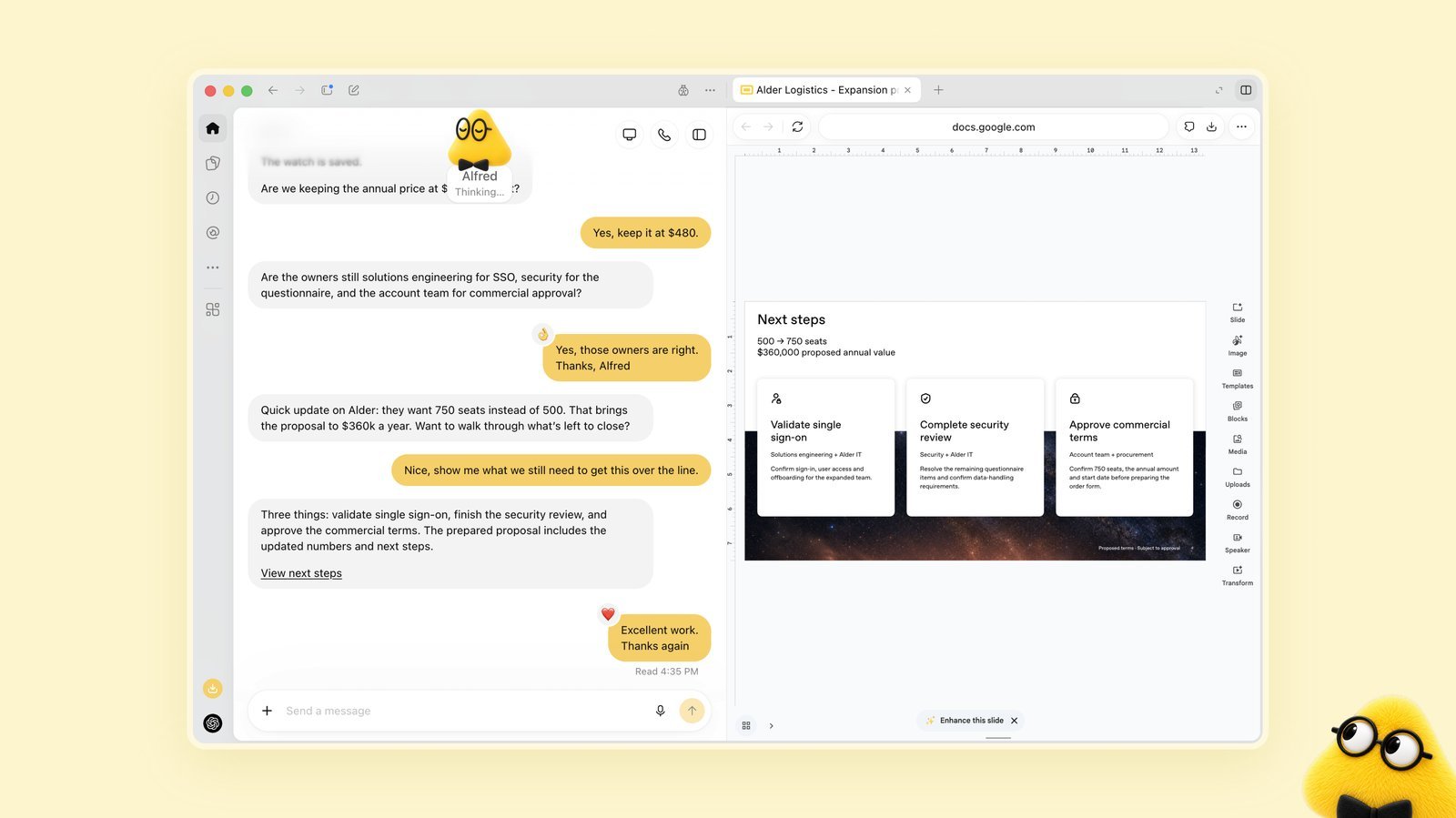
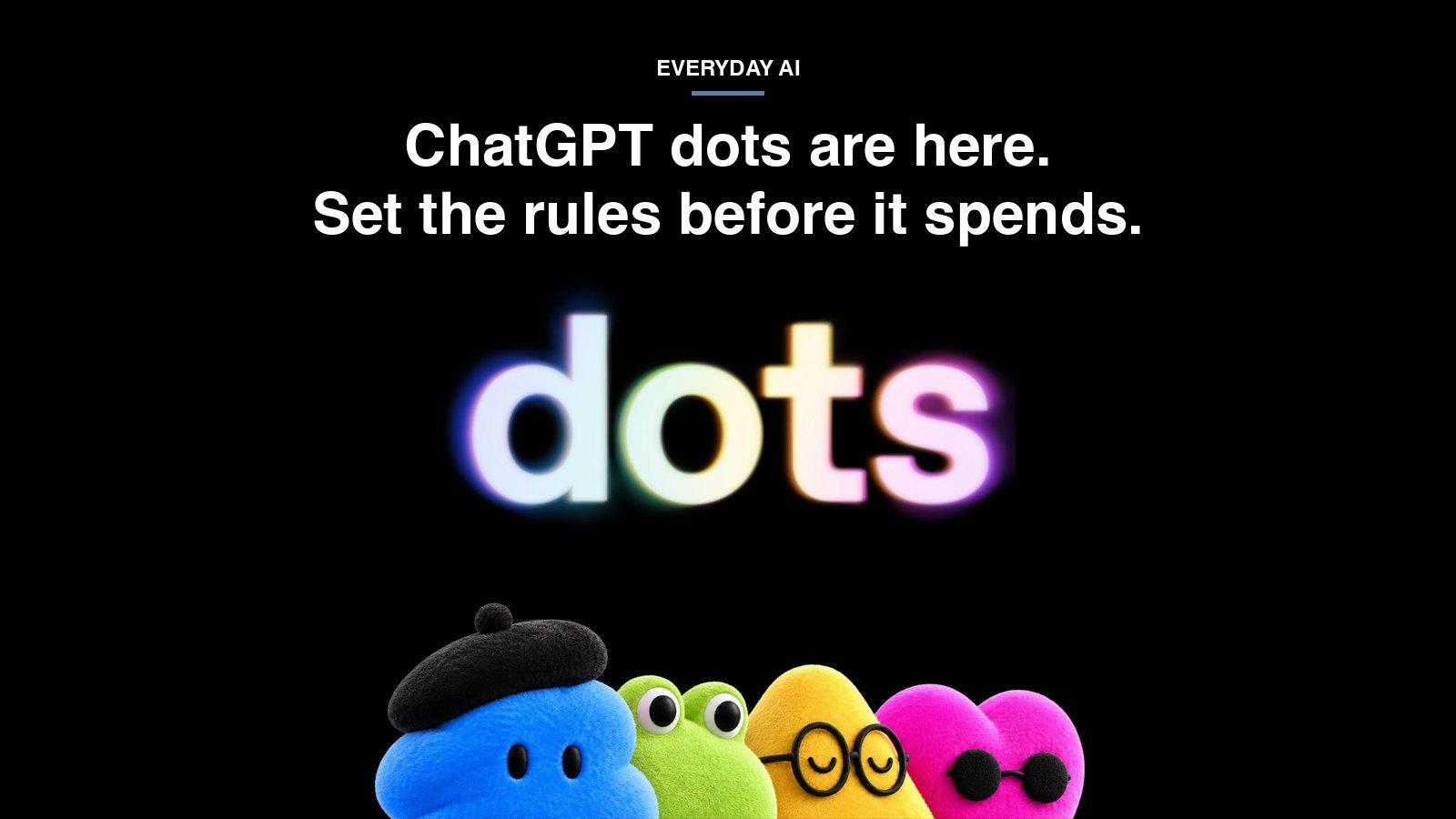
A dot is an AI agent that lives inside ChatGPT and keeps working after you close the chat. OpenAI’s announcement says each one is “powered by GPT-6 Astra,” has its own cloud computer, and can connect to “over 4,000 apps” through plugins.
Because that computer is in the cloud, your dot keeps going when your laptop is off, according to OpenAI’s docs. You can message it in ChatGPT, Slack, or Teams, or just call it.
OpenAI’s own example is an office offsite. The dot updates the headcount as people confirm, then asks you before it sends a request for revised pricing.
Who gets a ChatGPT dot, and does it cost extra?
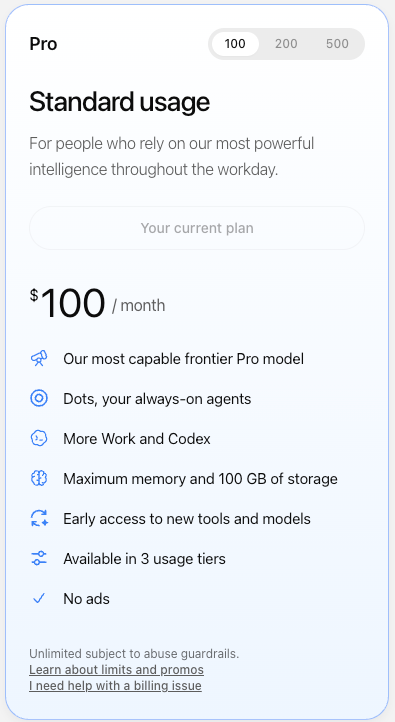
Every ChatGPT Pro plan includes a dot at no extra cost, starting with Pro at $100 a month. OpenAI’s docs list Pro 100, Pro 200, and Pro 500 for users over 18 outside the European Economic Area, the UK, and Switzerland, and the rollout is gradual, so you might not see it right away.
Free, Go, and Plus users don’t get one yet, so on Plus, trying a dot means moving up to the $100 Pro plan. Business Premium is rolling out too.
Talking to your dot doesn’t cost you anything extra. OpenAI says “conversations with your dot don’t count toward your ChatGPT usage limits,” but tasks it starts in Work or Codex count as usual, with extended limits for the first month. So the chatting is free, and the work it hands off is what uses your plan.
How to set up your ChatGPT dot
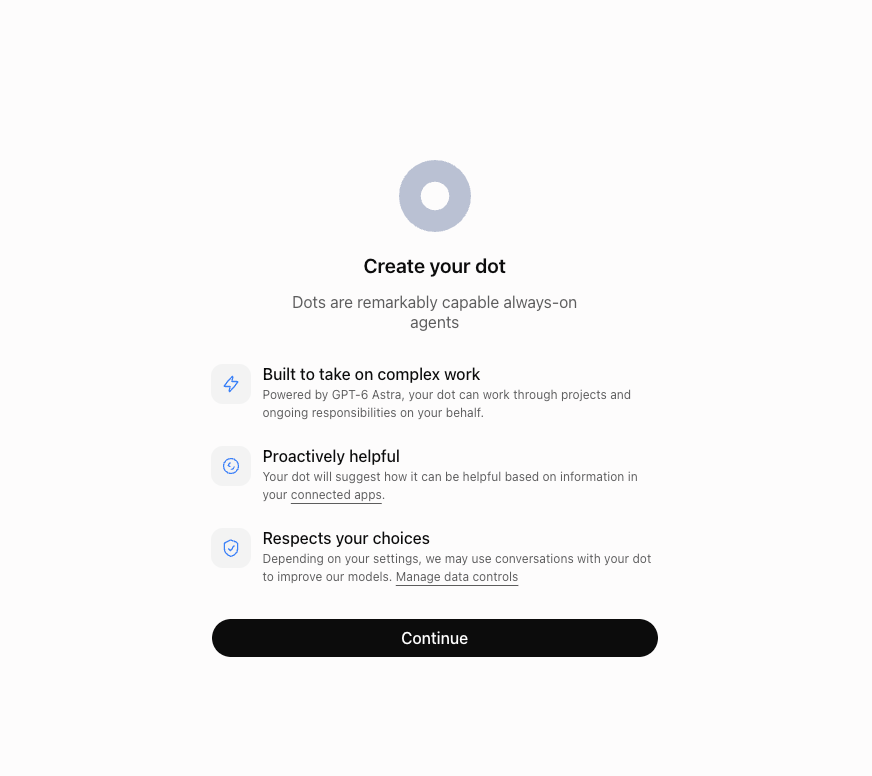
You need a computer to start, either the ChatGPT desktop app or chatgpt.com in a desktop browser. Mobile web doesn’t work for setup.
- Click Your dot in the ChatGPT sidebar, right under New chat, and select Continue.
- Name it and pick its look. You choose its shape, color, eyes, glasses, and accessories, and the name becomes its handle, so a dot named Alfred becomes @yourname-alfred.
- Check what it can reach. Your dot shares plugin permissions with the rest of ChatGPT, so open the Plugins tab and turn off anything it doesn’t need.
- Give it one responsibility and the material it needs. OpenAI suggests starting “with work you regularly need to check or update.”
- Review the first result before you hand it anything bigger.
OpenAI’s own example prompt ends with “Draft suggested replies for my review, but don’t send them.” Its docs explain why that matters: asking a dot to draft something doesn’t give it permission to send it.
The rules to set before your dot touches your card

Your dot can buy things with a card you’ve saved on a store’s website, and OpenAI’s safety FAQ says those purchases “require your approval.” You can approve in advance, but only when the approval specifically covers that purchase. The most sensitive actions, like changing a password or transferring money, come back to you to do yourself.
For your own limits, go to Settings, then Personalization, and select Custom rules under Permissions. Each rule gets one of four settings: Take action without asking, Take action when you say so, Ask before taking action, or Hand off to you. Here’s a starter set that follows OpenAI’s own examples.
- Buying anything: Ask before taking action
- Sending email or messages to other people: Ask before taking action
- Deleting files: Hand off to you
Approval before money moves is my line, and OpenAI says purchases need it. It’s also upfront that custom rules “are instructions your dot tries to follow, and it can make mistakes,” and that stopping a task doesn’t undo what it already did. If you don’t want it buying anything at all, don’t save a card on the sites it uses.
My take: I shouldn’t have to pay more to find out
I shouldn’t have to upgrade my plan to figure out whether something like this is worth it. These companies need to understand you have to give a little, and OpenAI is doing that by putting dots in the $100 plan I already pay for.
Hatch went the other way. Meta’s leaked plans floated $199.99 a month for it, never confirmed, and I can’t even figure out if it’s a use case for me without laying down $200. That’s just ridiculous. $200 a month isn’t small change. That could get you an old Camry that’s still going to run for a long time, so if you want people to pay it, tell them what the $200 is buying. (Meta’s Muse, which did launch, is free to start.)
When Hatch leaked, the jobs I pictured for an agent like this were a starter gardening cart, since I’m new to it, a bill queued up from my email, and a SlickDeals watch for a monitor I want. I’m still working out which one fits a dot best.
What to know before you connect everything
You can’t see or edit what a dot remembers. OpenAI’s FAQ says you “currently cannot view, delete or directly modify individual dot memories,” so clearing them means deleting the whole dot.
Your “Improve the model for everyone” setting covers your dot’s conversations and work, including data from connected apps, and OpenAI says human review can still happen in safety cases with that setting off. It also says its defenses against prompt injection, where a web page or email tries to trick an agent into doing something you didn’t ask for, “help reduce the risk” but “do not eliminate it.”
ChatGPT dots FAQ
Are ChatGPT dots free?
Not on free plans. Dots come with every ChatGPT Pro plan, starting at $100 a month, and with Business Premium. Free, Go, and Plus users don’t get one yet.
Can a ChatGPT dot spend my money?
It can make purchases with a card you’ve saved on a store’s website, but those purchases require your approval. Transferring money requires you to take over and do it yourself.
Does talking to my dot use my ChatGPT limits?
No. Conversations with your dot don’t count toward your ChatGPT usage limits, but tasks it starts in Work or Codex do.
How do I delete what my dot knows about me?
Delete the dot. You can’t remove individual memories yet, and deleting it doesn’t undo changes it already made in connected apps.
If you’re on Pro, your dot is already in the sidebar, so set the rules before you give it a first job. If you’re on Plus, there’s nothing to do yet.
Related reading: Meta Muse vs ChatGPT | Meta’s $199 Hatch agent idea | ChatGPT scheduled tasks guide | ChatGPT Pro 500 is official | New to AI? Start here
WHO WROTE THIS
Moses Smith. I write Everyday AI for people who aren’t engineers. I go try the tools, then tell you honestly whether they were worth it. Sometimes the answer is no, and that’s kind of the point.
This blog is free and has no ads. If it saved you some time, you can buy me a coffee.



Leave a Reply