

ℹ️ Quick Answer: Gmail AI Inbox is a separate view that reads your Primary tab and hands you two lists: suggested to-dos pulled out of your email, and topics to catch up on. It needs a paid Google AI plan, it only works in the US in English, and it’s still in beta.
📋 WHAT’S INSIDE
- What Gmail AI Inbox Actually Shows You
- It Doesn’t Wait for You to Ask
- What You Need to Get Gmail AI Inbox
- How to Turn On AI Inbox in Gmail
- What Gmail AI Inbox Can’t Do
- Who Should Turn It On, and Who Should Skip It
Last updated August 8, 2026
I’ve put real work into cutting the clutter out of my inbox. Filters, unsubscribes, the whole slow cleanup, and I got Gmail to a place where opening it stopped feeling like a chore. So I went into AI Inbox expecting a gimmick sitting on top of a problem I’d already solved.
It took things a step further than I expected. When I open it I get a short list of things that actually need me to do something, and a bill with a due date coming up is exactly the kind of item it pulls out. Under that there’s a second list of topics to catch up on, which is Gmail taking threads that got scattered across a week and putting them in one summary so I’m not opening six emails to work out where something landed.
I’m on the Google AI Pro plan, and so far I haven’t found anything about it I don’t like. It’s still in beta, so I’m holding some judgment for later. As a starting point it’s genuinely good, and it’s aimed at a specific kind of person.
What Gmail AI Inbox Actually Shows You
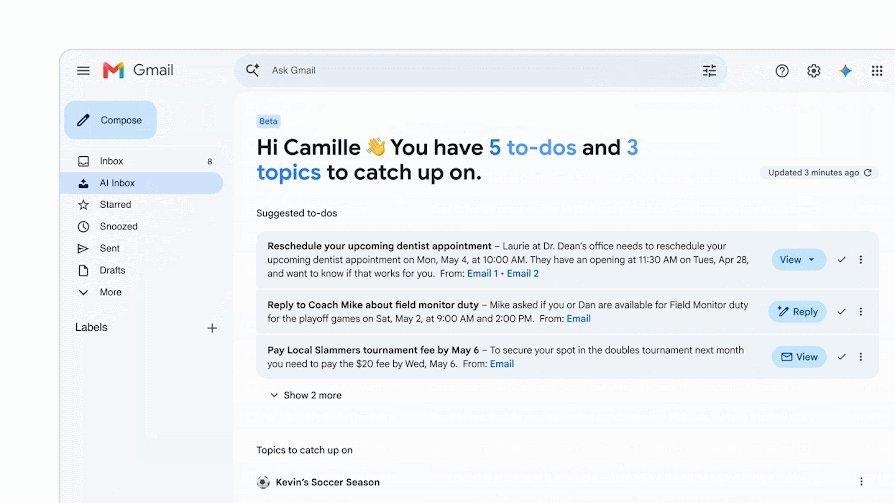
AI Inbox is a view in the left sidebar, and it splits into two sections. Suggested to-dos are the items from your email that need an action from you. Topics to catch up on are summaries of things spread across several threads.
The to-do half is the part that earns its place. Google’s own description is that it shows high-priority items and puts what you need to do in bold, using a due date on a utility or credit card bill as the example. That matches what I see. It skips past the summary and pulls out the one line in the email that has a deadline attached to it.
The topics half is quieter and I’ve come to like it more over time. Travel plans, a reservation, a purchase that’s moving through shipping updates, all of it collected under one heading instead of sitting in five separate threads you have to reassemble in your head.
There’s more attached to it than the two lists suggest. Google says AI Inbox also writes personalized draft replies, lets you mark a to-do as done from the panel, and surfaces links to relevant Docs, Sheets and Slides next to the thing they belong to. That last one matters more than it sounds if you live in Drive.
It’s also picky about what it looks at, which is the right call. It only reads messages in your Primary tab, so Promotions and Social never enter into it, and it skips anything you’ve archived, deleted, muted, snoozed, or that landed in spam.
It Doesn’t Wait for You to Ask

This is the difference that made it click for me. Gemini in Gmail waits for you to ask it something. AI Inbox doesn’t wait, it puts the summary in front of you the moment you open the view.
Gmail has had the asking side for a while. You can query your inbox in plain language, and AI Overviews will answer questions about what’s in there. That’s useful when you already know what you’re hunting for, and I covered how to actually use those features in my step-by-step guide to Gmail’s AI tools.
The catch with asking is that you have to know to ask. If a due date is buried in the fourth paragraph of an email from your insurance company, you’re never going to type a question about it, because you don’t know it’s there. That’s the gap AI Inbox fills, and it’s why I’d describe it as a heads-up rather than an assistant.
What You Need to Get Gmail AI Inbox
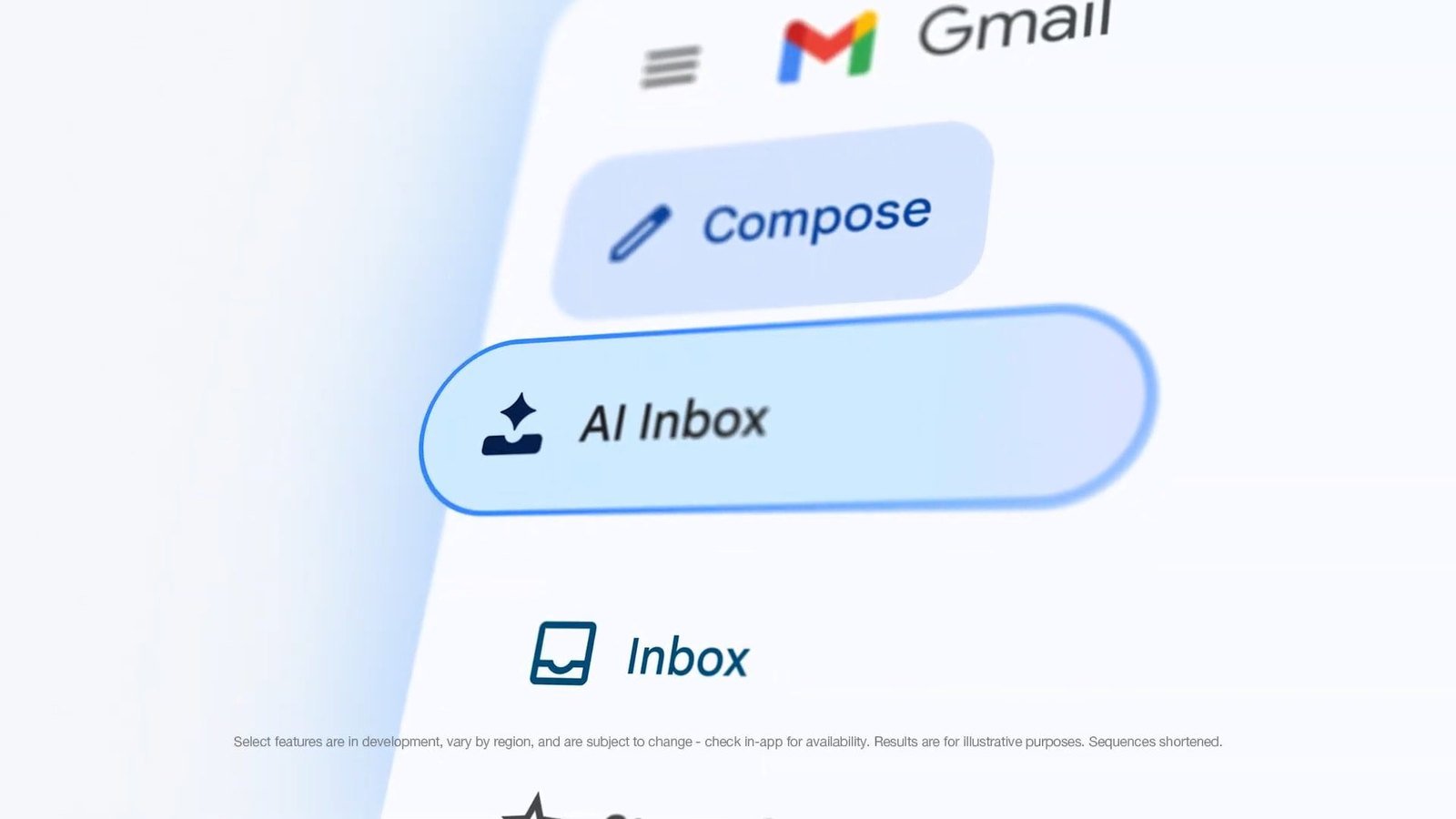
You need a paid Google AI plan, a personal account in the US set to English, and two smart features settings switched on. It’s still labeled beta.
Worth clearing up the price first, because it got stuck in a lot of people’s heads. AI Inbox launched to Google AI Ultra subscribers only, which produced a run of headlines about it costing $250 a month. Both halves of that have since changed. At I/O in May, Google cut the top Ultra plan from $250 to $200, added a $100 Ultra tier, and said AI Inbox was rolling out to AI Plus and Pro subscribers as well.
So the entry point is far lower than the coverage suggests. Google’s requirements page now lists AI Plus, AI Pro, and AI Ultra as eligible, and Pro is the one I’m on. Check Google’s plans page for what each tier costs today, because these prices have moved twice this year already.
Work and school accounts are a different story. Those need Workspace Enterprise Plus with access to Gemini Beta, and your admin controls whether it’s on at all. If you’re on a company account and can’t find AI Inbox anywhere, that’s usually the answer and it isn’t something you can fix from your end.
Then there’s the part most coverage skips. AI Inbox requires Smart features in Google Workspace and Smart features in other Google products to be turned on. Those are the same settings a lot of articles are currently telling you to turn off. You can’t run AI Inbox and opt out of Gmail’s smart features at the same time, so this is a real fork in the road.
⚠️ Heads up: AI Inbox is US and English only right now. If your account is set to another country or language, the setting won’t appear no matter which plan you’re paying for.
How to Turn On AI Inbox in Gmail
It’s two separate trips into settings. You turn on the smart features first, then you switch on the view itself, and it doesn’t populate right away.
Step 1: Turn on both smart features settings
- Open Gmail on a computer and click the gear icon at the top right, then See all settings.
- In the General tab, scroll to Google Workspace smart features.
- Click Manage Workspace smart feature settings.
- Turn on Smart features in Google Workspace and Smart features in other Google products.
- Click Save at the bottom right.
Step 2: Switch on the AI Inbox view
- Back in Gmail, click the gear icon and See all settings again.
- Click the Inbox tab at the top.
- Check the box next to Show AI Inbox.
Now leave it alone for a bit. Google says it takes a few hours to start working and up to seven days before your first full set of to-dos and topics shows up, which explains most of the “I turned it on and nothing happened” complaints you’ll find. Nothing is broken, it just needs time to read enough of your mail to have an opinion.
What Gmail AI Inbox Can’t Do
It can’t read attachments, encrypted messages, or delegated inboxes, and it never looks outside your Primary tab. Those limits are documented by Google, not guesses.
The attachment gap is the one that would bite me hardest if I relied on this completely. If a company sends an invoice as a PDF with a two-line email above it, the due date lives in the attachment and AI Inbox won’t see it. Same with anything encrypted, and if you manage someone else’s inbox as a delegate, that inbox is invisible to it.
The Primary tab restriction cuts both ways. It’s why the list stays clean, and it’s also why a genuine deadline sitting inside an email Gmail decided was promotional will never reach you. Android Authority, whose hands-on ran longer than mine, found misses in both directions, with a clever marketing subject line occasionally landing as a fake to-do and real requests with no stated deadline going unflagged.
Treat it as a second set of eyes rather than the only set. It’s beta, Google labels it beta inside the product, and that label is doing honest work.
Who Should Turn It On, and Who Should Skip It

Turn it on if your Primary tab is genuinely busy and you’re already paying for a Google AI plan. Skip it if your inbox is quiet, if you’d be subscribing purely for this, or if you’d rather Google wasn’t processing your mail at all.
The people this is built for are the ones who don’t have time to read everything that comes in. If you’re getting enough mail that things slip, and the thing that slips is usually a date somebody buried in a paragraph, this is a real fix for a real problem. That’s the case I’d make for it.
If you get twenty emails a week you’re already reading all of them, and a summary of things you’ve read is just another screen. There’s no reason to pay for that.
The privacy call is the one worth sitting with for a minute. Switching this on means switching on the smart features settings, which is the opposite direction from where a lot of people have been heading lately. Google brought Gemini into Gmail back in January and switched much of it on by default for US accounts, so opting out was left to the user, and plenty of people did exactly that. If you’ve already gone through and turned off Google’s AI features, or you did the same across Windows and Office with Copilot, then AI Inbox is asking you to undo that for Gmail specifically. That’s a fair trade for some people and a non-starter for others, and both answers are reasonable.
✅ My take: If you’re already paying for Google AI Plus, Pro, or Ultra, switch it on and give it a full week before you judge it. If you’re not subscribed to anything yet, this feature on its own isn’t a good enough reason to start while it’s in beta.
Is Gmail AI Inbox free?
No. Personal accounts need a paid Google AI plan, and Google lists AI Plus, AI Pro, and AI Ultra as eligible. It launched on Ultra only, back when Ultra cost $250 a month, which is where the reports of it being expensive came from. Google cut Ultra to $200 at I/O in May and expanded AI Inbox to the cheaper Plus and Pro tiers. Work and school accounts need Workspace Enterprise Plus with Gemini Beta enabled by an admin.
Why can’t I find AI Inbox in my Gmail settings?
The three usual reasons are plan, region, and smart features. It requires a paid Google AI plan, it is only available in the US and in English, and both Smart features in Google Workspace and Smart features in other Google products have to be turned on before the Show AI Inbox checkbox does anything. On a work account, your administrator may not have enabled Gemini Beta.
I turned on AI Inbox and nothing is showing up. Is it broken?
Probably not. Google says it can take a few hours to start working and up to seven days before your first set of to-dos and topics appears. It also only reads your Primary tab, so if most of your mail lands in Promotions or Social there may genuinely be nothing for it to surface.
Can AI Inbox read my attachments?
No. Attachments, encrypted messages, and delegated inboxes are all outside what it can see. If a due date only exists inside a PDF invoice, AI Inbox will not turn it into a to-do, which is the main reason to treat it as a second set of eyes rather than your only one.
Gmail spent years getting better at sorting mail. This is the first thing it’s done that reads the mail and tells me what I owe someone, and after all the work I put into cleaning up that inbox myself, I didn’t expect to be won over by one more panel. Give it the full week before you decide.
Related reading: How to use Gmail’s AI features | What Gmail’s AI update gave 3 billion users | How to turn off Google AI Mode | New to AI? Start here
WHO WROTE THIS
Moses Smith. I write Everyday AI for people who aren’t engineers. I go try the tools, then tell you honestly whether they were worth it. Sometimes the answer is no, and that’s kind of the point.
This blog is free and has no ads. If it saved you some time, you can buy me a coffee.






Leave a Reply